Is your game freezing right when you are about to shoot an enemy? There is nothing worse than dying because of lag.
In this guide, I will show you how to increase your FPS (Frames Per Second) and lower your Ping in Roblox Gun Tycoon. Even if you play on an old phone or a slow laptop, these tips will help.
1. Change Roblox Graphics Settings
The easiest way to stop lag is to adjust the built-in settings.
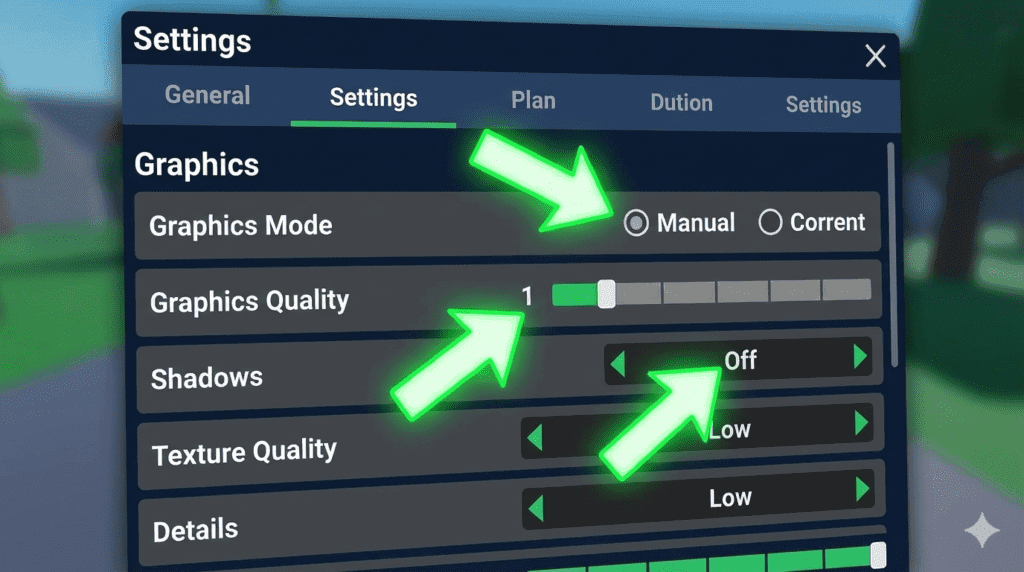
- Press Esc (or click the Roblox logo).
- Go to Settings.
- Change Graphics Mode from Automatic to Manual.
- Lower the Graphics Quality slider to 2 or 3 bars
Note: Don’t set it to the absolute minimum, or you won’t see enemy lasers!
2. Turn Off “Textures” (For PC Users)
If you are on a computer, you can modify Roblox files to remove heavy textures. This makes the game look simpler but run 2x faster.
- Search for Roblox Player on your desktop.
- Right-click and select Open File Location.
- Delete the
Texturesfolder (don’t worry, the game will redownload essential ones if needed).
3. Check Your Internet Connection (Ping Fix)
High Ping means your actions are delayed.
- Use WiFi 5G: Connect to the 5GHz network if possible.
- Close Background Apps: Close YouTube, Discord streams, or Chrome tabs while playing.
They eat your internet!
Why is Gun Tycoon Lagging?
Sometimes the server itself is full. If the game feels slow, try joining a Small Server or buy a private server if you have Robux.
Now that your game is smooth, it’s time to build! Check out our Gun Tycoon Money Guide to earn cash fast, or grab free rewards from our Codes List.
Comments are closed.